





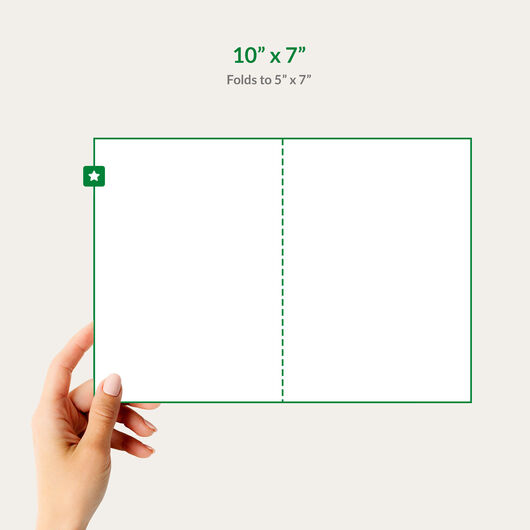


Invitations


Features
Make Every Event Memorable With Custom Invitations
“
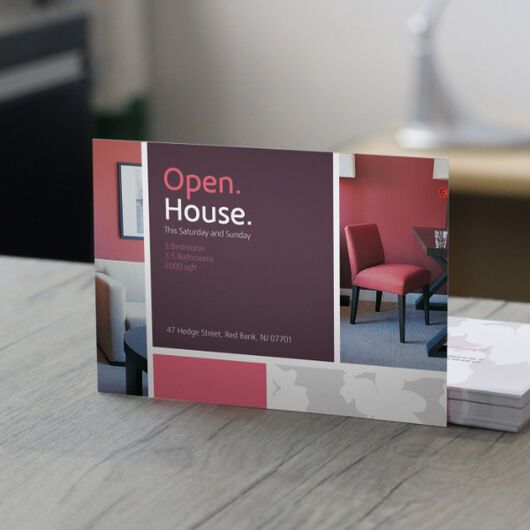
Custom invitations are the perfect way to set the tone for any event, whether it's a wedding, corporate gathering, birthday party, or any special occasion.
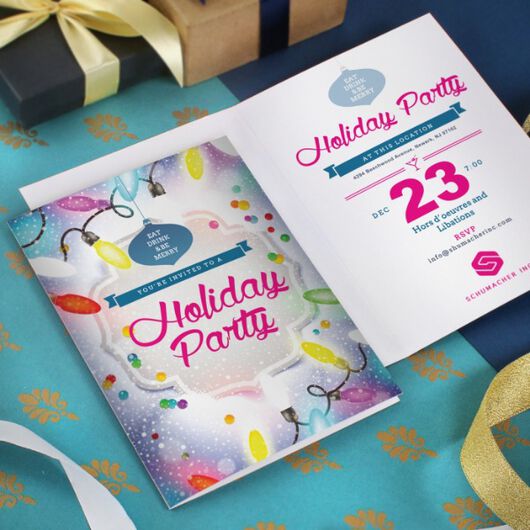
From sleek corporate invitations to lively party invites, our personalized options ensure your event starts on the right note. With flat and folded designs, you can tailor each invitation to perfectly suit the message you want to convey.
Enhance Your Design with Premium Finishes
Be unforgettable with premium invitations. Choose the material that will make your invitations stand out the most from the foil, silk, and metallic options.

Foil Invitations
- Takes invitations from nice to grand
- Uncoated or silk-laminated
- Comes with spot UV option


Customize Every Detail of Your Invitations
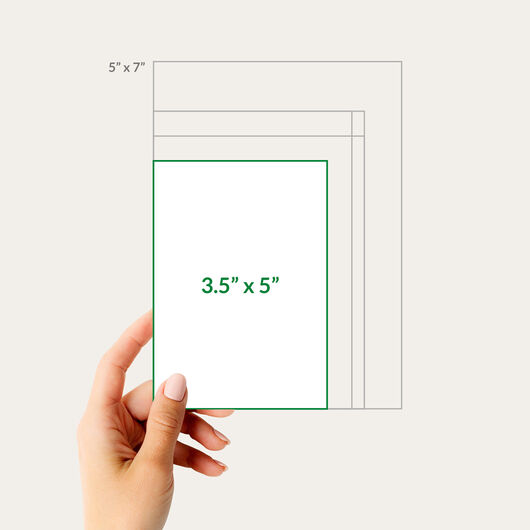
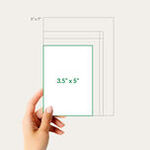
Sizes: Choose the perfect dimensions for your needs, whether flat or folded. Get invitations as small as 3” x 5” to as large as 5” x 7”.
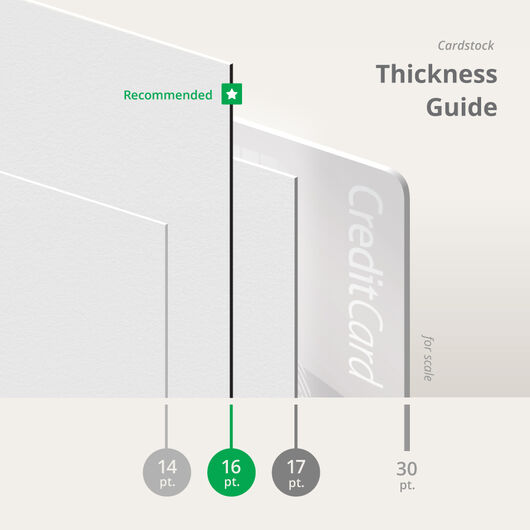
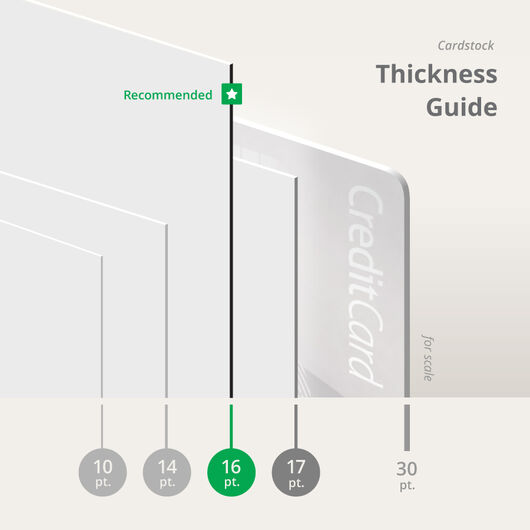
Materials: Different materials are available according to your needs, from standard 14 pt. cardstock, to a thick and luxurious 17 pt. option. Premium finishes like foil, silk and metallic treatments are also available.
Templates: Use our design templates or upload your own artwork for a seamless experience.
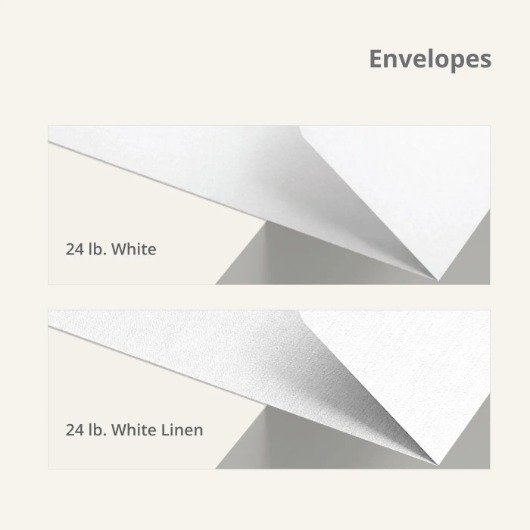
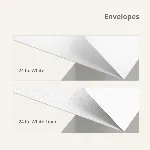
Envelope Options: Include matching envelopes to complete the look and protect your invitations.
Flat, Folded & Foil: An Invitation Printing for Any Occasion
Send out personalized invitations to your local customers. Mailing exclusive information and access to special events like discounts, sales, and product releases show consumers you value their business. UPrinting lets you choose the right size, shape, and finish so every invite is memorable and on-brand. Here are some of the ways to customize your invitations for special events like discounts, store openings, and other retail events:
Print Invitations for Every Event
Personalized invitations give more impact to your recipients since these add appeal to your usual party invites. Whether you are organizing a small event or a big party, invitations sure will never miss out on your list of event essentials. Some of the most common invitations you can customize are:
- Birthday invitations
- Party invitations
- Wedding invitations
- Housewarming invitations
- Baby shower invitations
- Retirement invitations
- Graduation invitations
- Reunion/Dinner invitations
Popular Invitations
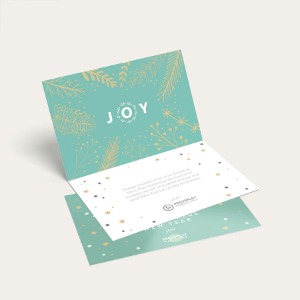
Boost the excitement for your events with invitation printing. Choose the most suitable invitation type between flat and folded invitations.

Flat Invitations
- Print on thick, durable cardstock
- Print on one or both sides
- Ready to ship in 1 business day

Folded Invitations
- Double the space for more impact
- Optional white envelopes
- Perfect for announcements & events
Invitations FAQs
Size. Color. Material. It's all here, and more.
10 Paper/Stock Options

10 pt. Cardstock Gloss
- Lightweight cardstock with a gloss finish for sheen and vibrant colors
- Requires scoring prior to folding
- Paper from sustainable sources
- May be written on but testing is recommended
- Ballpoint pens (oil-based ink) and permanent markers work best
- Great choice for heftier Brochures, Invitations and Catalog Covers

10 pt. Cardstock Matte
- Lightweight cardstock with a non-reflective matte finish for a classic and elegant feel
- Requires scoring prior to folding
- Paper from sustainable sources
- May be written on but testing is advised
- Ballpoint pens (oil-based ink) and permanent markers work best
- Great choice for heftier Brochures, Invitations and Catalog Covers
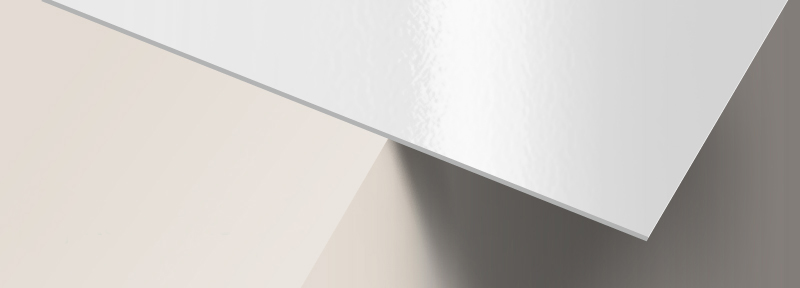
14 pt. Cardstock Gloss
- Stiff, thick cardstock with a gloss finish for sheen and vibrant colors
- Aqueous (water-based) coating adds scratch and scuff resistance
- Paper from sustainable sources
- May be written on but testing is recommended. Ballpoint pens (oil-based ink) and permanent markers work best.
- Most popular choice for Business Cards, Postcards, Hang Tags and Pocket Folders
- Note: We do not guarantee writability or printability of coated paper

14 pt. Cardstock Matte
- Stiff, thick cardstock with a non-reflective matte finish for a classic and elegant look
- Aqueous (water-based) coating adds scratch and scuff resistance
- Paper from sustainable sources
- Non-glossy surface provides better writability but testing is recommended.
- Ballpoint pens (oil-based ink) and permanent markers work best.
- Great choice for Business Cards, Postcards, Hang Tags and Pocket Folders
- Note: We do not guarantee writability or printability of coated paper
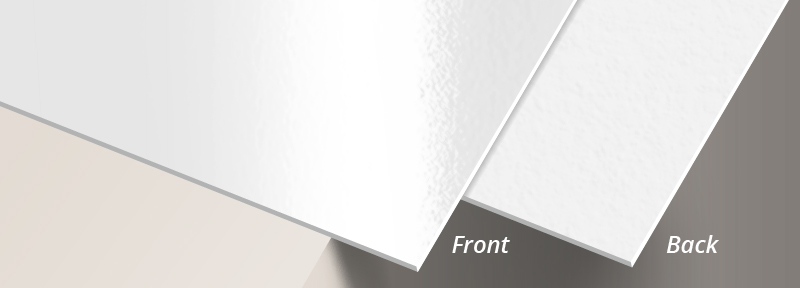
14 pt. Cardstock High Gloss (UV) Front, Uncoated Back
- Medium weight cardstock with a gloss finish on the one side and uncoated on the reverse side
- Requires scoring prior to folding
- Paper from sustainable sources
- Uncoated side is excellent for writing on with any pen or pencil
- Best option for folded Greeting Cards, Invitations and Note Cards

14 pt. Cardstock High Gloss (UV)
- Stiff, thick cardstock with UV gloss coating for a mirror-like finish
- Scratch and fade-resistant
- Paper from sustainable sources
- Permanent ink markers work best for writing given sufficient drying time
- Excellent choice for Business Cards, Postcards, Hang Tags and Club Card Flyers
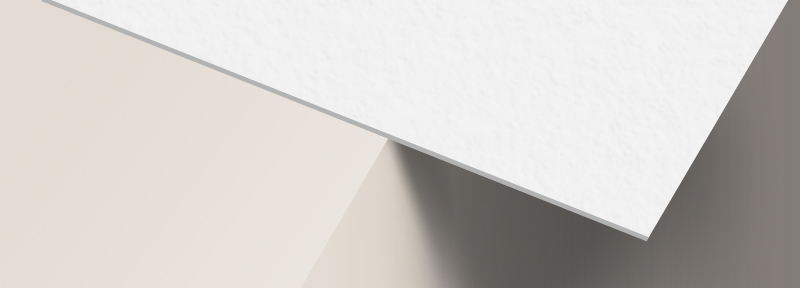
14 pt. Cardstock Uncoated
- Requires scoring prior to folding
- Excellent writability
- Recommended for Appointment Cards, Invitations and Note Cards
- Acid free and archival quality

16 pt. Cardstock Gloss
- Slightly thicker than the 14 pt. cardstock; added rigidity prevents folds and creases
- Provides limited writability using some ballpoint pens or permanent markers
- Colors appear extra vivid and come with a reflective shine
- Achieves a distinct, professional look for your company

16 pt. Cardstock Matte
- Ultra thick and stiff cardstock with a non-reflective matte finish for a classic and elegant look
- Paper from sustainable sources
- May be written on but testing is recommended. Ballpoint pens (oil-based ink) and permanent markers work best.
- Excellent for heftier Business Cards
- Note: We do not guarantee writability or printability of coated paper

17 pt. Cardstock Uncoated
- Ultra thick and stiff uncoated cardstock with a rich premium paper feel
- Paper from sustainable sources, 10% PCW recycled content
- Excellent writability
- Great choice for heftier Business Cards
Free Flat Invitations Design Templates
Follow these simple steps to customize your Flat Invitations with our free design templates below:


Invitation Print File Guidelines


About Hard Copy Proofs
UPrinting offers hard copy proofs for clients with color critical art. These color proofs are printed on our highly calibrated EPSON proofing system and are closest representation of the final printed pieces.
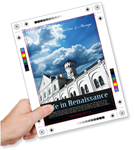
Hard Copy proofs are printed using Kodak Proofing Stock, which is different from the actual paper we will use when printing your order. While its main purpose is to show color, variations may occur depending on the finish selected (AQ, Matte, UV) for the final print job. We do not offer hard copy proofs for art that will be printed on uncoated paper.